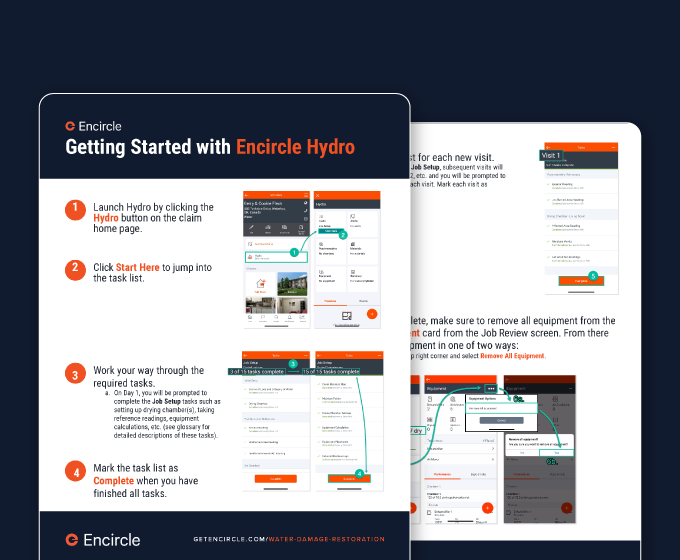
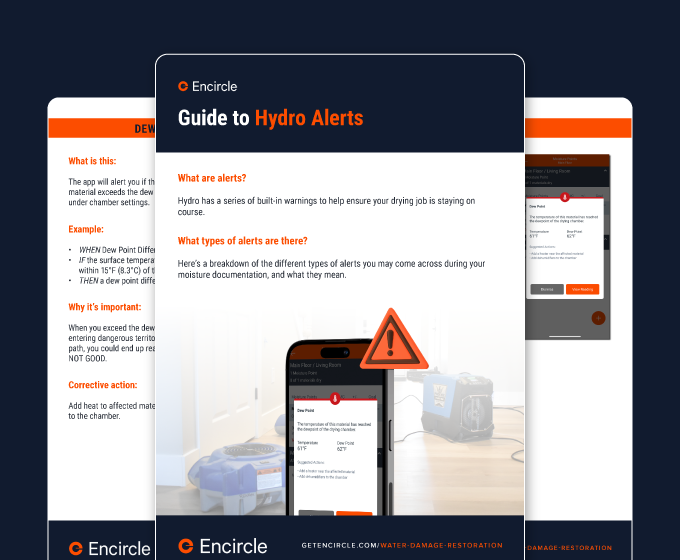
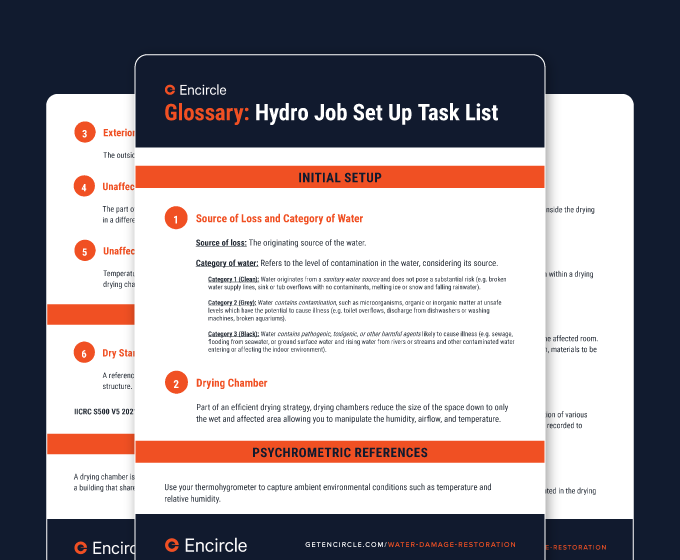
Let’s start with the basics. The core tasks that will get your job set and ready for monitoring. This is your fastest path off of paper and into a reliable, repeatable process. Before we jump right into Hydro, make sure that you’ve set up and documented the affected and unaffected rooms in the property. We’ll be using these in Hydro to create our drying chambers. If you’re not sure how to do this, we recommend watching the Field Documentation Basics video. From the home page of the job, click the Hydro button to open up the Hydro job dashboard and let’s get started by opening up the task list. The first thing we’ll do is capture the source of loss and select the category of water at the source. This creates a clear record of the loss and the type of water. Keep notes short, If hazards like mold or asbestos are present, document them here so your team and stakeholders have the full picture. Next, we’ll set up your drying chamber. Open the Drying chamber task. Be sure to add both the affected and unaffected rooms that are inside the drying chamber. This ensures that your overall chamber volume is accurate, which is essential for future calculations. Depending on the size and type of job, you might have multiple drying chambers to set up. Keep adding chambers here until you’ve got them all set up and then click Complete Task to unlock the rest of the task list. Now we’ll capture some important baseline readings. For exterior readings, Hydro can automatically fetch temperature and humidity from a nearby weather station. Or you can walk outside, snap a photo of your meter and enter the reading values manually. Click Save. Then go ahead and take an unaffected area reading. Choose a dry, undisturbed room inside the structure. This gives you a baseline point of comparison for interior conditions that aren’t impacted by the water damage. Click Save on this task and you’ve now completed those two tasks. We’re going to skip over the Unaffected Area HVAC reading task for now. This will be covered later in the video, under Advanced Features. With your chamber set up and your baselines captured, it’s time to set your dry standards. Dry standards help you determine when wet materials like drywall, wood, flooring and so on are considered dry. In a similarly unaffected area of the property, open the task, select the material, take a meter photo, enter the reading and confirm the meter type. If the meter doesn’t match what you’re using, click Change and select the right meter from the list. When you’re finished, Click Save. Repeat this process until you have a dry standard for every wet material on the job. To help you track drying progress, Hydro automatically calculates drying goals by applying a drying variance of ten percent to your dry standards. You’re going to start taking readings in the wet affected areas now. For each drying chamber you created earlier, you’ll see a set of tasks to complete, labeled with the corresponding drying chamber name. Open the Affected Area Reading task. Choose a room in the chamber and take your readings there consistently each visit. Snap your meter photo, enter temperature and humidity and save. You may see a High Humidity alert. That’s expected early in the job. We’re going to skip over the affected area HVAC reading task for now. This will be covered later in the video under Advanced Features. We’re also going to skip right over Dimensions and Moisture mapping tasks to get to moisture points. This is one of the great things about Hydro. You’ve got a list of tasks, but you’re free to jump around and get the tasks completed in the order that makes the most sense for the job at hand. Just like your air readings, you want to track moisture content readings in the same place each time. Creating moisture points establishes a repeatable location for measuring, monitoring and recording the drying process of wet materials. You can place moisture points with or without a Moisture Map. For the purpose of this video, we’ll do it without the map. In the Advanced Features section later, we’ll circle back to show you how to place the moisture points on a map. Open the task. Select the room and material. Then place your moisture point and record the reading, just like your other tasks. You’ll have the option to add the Surface Temperature reading as well. We recommend using a piece of painter’s tape on the wall to label your moisture points the same way they are labeled in Encircle. This is an easy way to ensure that whoever is taking readings on later visits will always go to the same area each time. One way to speed up the process is through our Tramex integration. If you are using a Tramex Bluetooth meter, Hydro will pull the reading automatically after you snap the photo. No typing required. Once your moisture points are captured, document your equipment placement. Open the Equipment placement task, select the room and add units like dehumidifiers, air movers or scrubbers. Use the plus buttons on the right to place the units. Repeat for each room. Then click Place. Click the back arrow to return to the task list. If you want to learn about using the Hydro Equipment calculator to get an S500 compliant equipment recommendation, that will be covered in the Advanced Features part of this video. Lastly, it’s time to capture dehumidifier readings. Open the task, select a room, and then select the unit you’re taking the readings from. The purpose of this task is to capture the output readings on your dehumidifier to make sure it’s functioning properly. If your dehue has an output display, snap a photo of it and enter the reading into Hydro. Alternatively, you can take a hygrometer reading from the unit’s exhaust. Just snap your photo, enter your readings. If your unit has an hour meter, take a photo of that too and log the hours running. Keeping these hourly records is powerful proof when charges are questioned or conditions change. And that’s it! You’ve completed the core documentation you need to get the job started right. Make sure you always click Complete to finish the job setup. From here, the Hydro task list makes daily monitoring simple. Each visit, you’ll open your Task List, update your readings, check your equipment and respond to any alerts you see. When the job is complete, remove your equipment in Hydro to capture the pickup date for your report. Hydro gives you a consistent, easy, repeatable process to get you the kind of documentation that holds up under scrutiny. The Hydro Job Review dashboard gives you a single place to see everything happening on the job. And because data syncs in real time, you can check-in from anywhere, whether you are in the office, in the truck or at another job site, you can review readings, see what equipment is placed and make sure that small issues don’t turn into big, expensive problems later. Project managers and supervisors love this because it lets them stay connected to the job without having to be on-site, keeping the whole team aligned and accountable. Hydro includes built in alerts to help you stay on top of changing conditions. Alerts trigger automatically when key measurements fall outside your specified tolerances. Things like high relative humidity, temperature swings, a low dew point differential, or when your equipment may be undersized for the job. When an alert triggers, you’ll see a pop up immediately, and that alert will also be visible in the Job Review dashboard, the task list, and on the reading screens. Each alert includes helpful suggestions for what to do next, like adding a dehumidifier, turning on heat, or checking airflow. Promptly responding to alerts helps you to stay proactive and keeps the drying process moving efficiently. After drying is complete, make sure to remove the equipment from the job. This is important for your equipment log. You can easily do this from the Hydro dashboard. Open the Equipment page. Tap the three dots at the top right and select Remove all equipment. This ensures your equipment logs are accurate, which is critical when billing for the job later. When it’s time to share your documentation, whether it’s a daily update or a final invoice package, Hydro makes it easy to create professional moisture reports. You can choose from several report types depending on what you need to show. The Hydro Full Report includes every reading from every day along with all meter photos. It’s perfect for detailed compliance reviews or program jobs. The Hydro Summary Report is a lighter version that shows the first and last two days of readings, with fewer photos ideal when you want a quick overview for a homeowner or adjuster. The Hydro Equipment Report gives you a detailed log of every piece of equipment you placed and removed, including runtime hours. This is great when you need to justify equipment charges on an invoice, And the Hydro Carrier Report uses a format that many carriers prefer, helping to eliminate back and forth and speed up payment. You can also embed Hydro data directly into your Encircle PDF report to keep everything in one polished, professional document. No matter which report you choose, they’re clear, defensible and designed to get you paid faster. With Job Review, Alerts and reporting, Hydro gives you the tools to monitor jobs in real time, respond quickly to changing conditions, deliver professional documentation that’s easy to share. These features not only help you stay in control of the job, they help your company reduce disputes, get invoices approved and close jobs with confidence. The best way to learn Encircle is to get out there and use it! Our Help Center and our Support team are here for you to answer any questions that come up.







 Approved CE Provider
Score 80% or higher to earn your IICRC CE credit — request your certificate in the quiz.
Approved CE Provider
Score 80% or higher to earn your IICRC CE credit — request your certificate in the quiz.